Short answer
Go to Settings, Content, Domains & URLs, Email Sending and click Connect sending domain. HubSpot lists MX, two DKIM CNAME records, an SPF TXT record, and a DMARC TXT record. If you already have an SPF record, add HubSpot's include to it instead of creating a new one, and keep the SPF version and -all only once. HubSpot says DNS changes usually take 10 to 70 minutes and up to 48 hours, so wait at least 20 minutes before verifying. For a healthcare practice on GoDaddy, the SPF record was the part we had to fix.
1. Where it lives
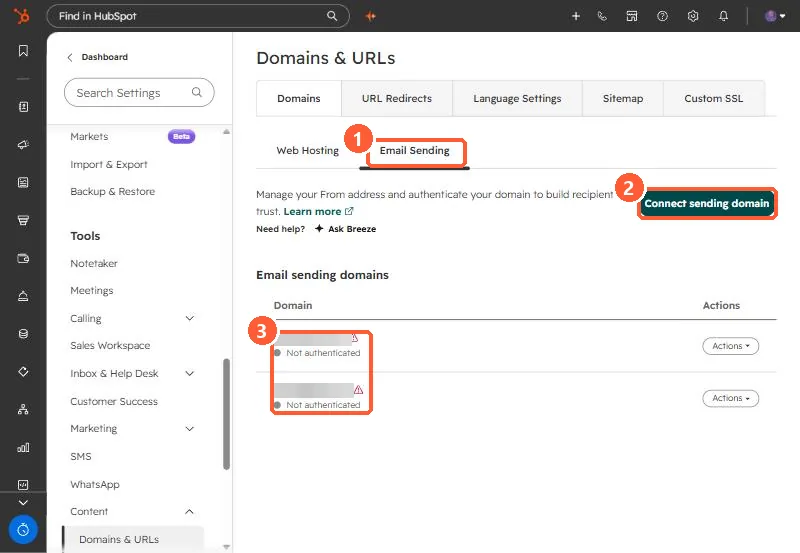
Open Domains & URLs and the Email Sending tab. Domains are blurred below. Both in my demo show Not authenticated.
2. The records
HubSpot's article lists MX, DKIM (two CNAME records), SPF (a TXT record), and DMARC (a TXT record). Copy the values from the connect screen into your DNS provider.
3. SPF: one record only
A domain should have one SPF record. HubSpot says that if you already have one, you add the string after include: to the end of the existing record and make sure the version and the -all flag appear only once. On the healthcare practice's GoDaddy account we edited and merged the SPF record so it authorized HubSpot without a second record.
For example, a domain that already sends through Google Workspace might end up with:
v=spf1 include:_spf.google.com include:[value HubSpot shows you] -allUse the include value from your own connect screen. The bracketed text is a placeholder.
4. Verify and test
HubSpot says DNS changes usually take 10 to 70 minutes and up to 48 hours, and recommends waiting at least 20 minutes before verifying. We sent test emails from the practice's domain to confirm. Keep a note of what is in DNS and why, because the next tool that asks for an SPF change can break it again.