Short answer
Open the form in the editor, click Share, and copy the Embed code. It is a script from js.hsforms.net plus a call that creates the form with your portal and form IDs. Paste it into your page's HTML. Then register the site's domain, or the submissions will be flagged as spam, and install the HubSpot tracking code if you want the form's analytics to work. If you do not want to embed anything, the Share link tab gives a standalone form page.
1. Build the form first
The newsletter form on this site was built in Forms like any other. It has an email field, a first name field, a consent checkbox, and a submit button. Everything on the page is editable in the HubSpot editor, not on your site.
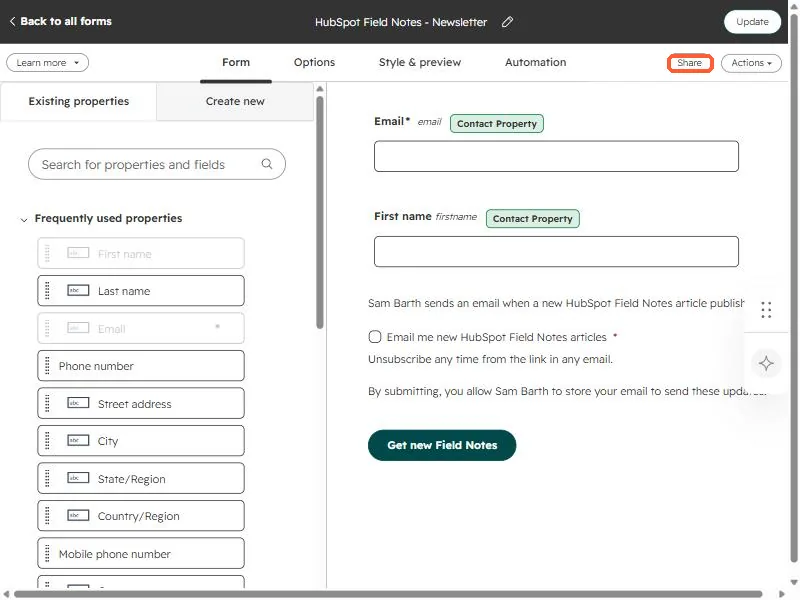
2. Open Share, then Embed code
Click Share. The dialog opens with two tabs. Embed code has the snippet to paste into your site. It loads a HubSpot script and calls a function that renders the form with your portal ID and form ID.
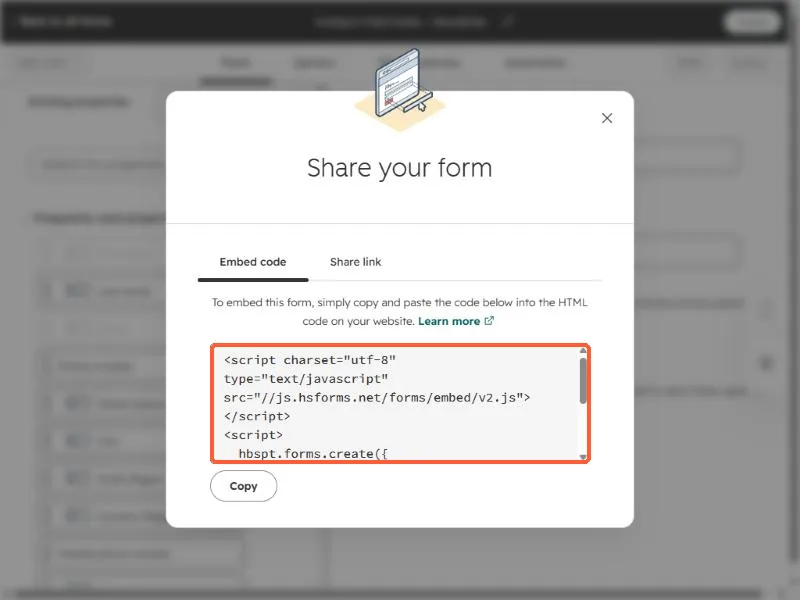
<script charset="utf-8" type="text/javascript" src="//js.hsforms.net/forms/embed/v2.js"></script>
<script>
  hbspt.forms.create({
    portalId: "YOUR_PORTAL_ID",
    formId: "YOUR_FORM_ID"
  });
</script>
Use the exact code from your own dialog, because it also carries your region setting. Paste it where the form should appear.
3. Or use the share link
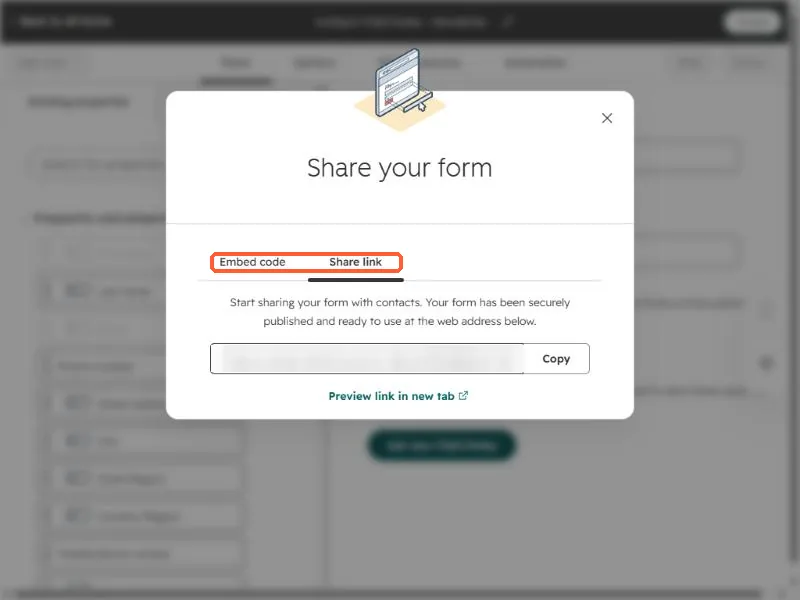
The Share link tab gives a standalone page that needs no code. HubSpot hosts the form on its own address and you can link to it from anywhere. The link is blurred below.
4. Two things that make it work
- Register the domain. Submissions from a domain HubSpot does not recognize are marked as spam. See form submissions marked as spam.
- Install the tracking code. HubSpot's documentation says the tracking code is needed on the external page to track analytics for an embedded form.
Styling is controlled in the editor under Style & preview. Advanced CSS control through developer code needs Marketing Hub or Content Hub Professional.