Short answer
Name alone matches several companies. For a manufacturing client with a 700 row industry code spreadsheet, I exported company Record IDs, matched each row to exactly one company, kept the ambiguous rows out, and imported about 590 matched rows keyed on Record ID. Record ID overrides every other identifier in an import, so it updates exactly the record you meant.
1. Create the property first
I started from a spreadsheet of industry classification codes and a plain-language application for each company. Before importing, create the company property that will hold it. Here I used a multiple checkboxes property so one company can belong to several segments. Open Company properties and click Create property.
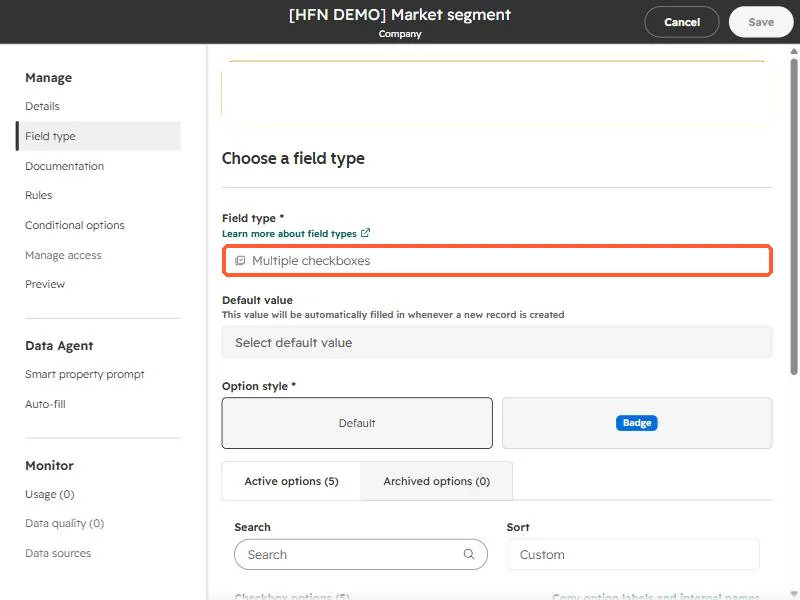
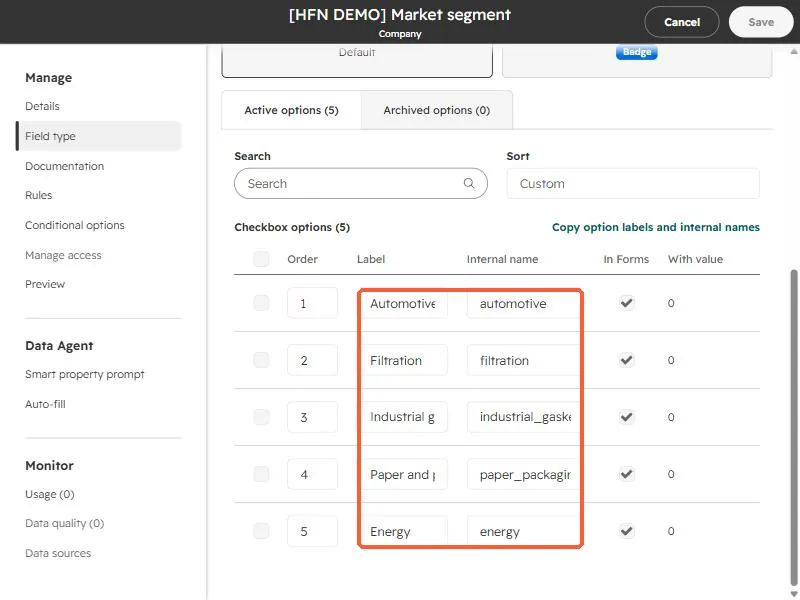
Option labels and internal names matter because imports match on them. When the source terms are in another language, I stored the source term in each option's description and used the English label in the option itself.
2. Why the match must be by Record ID
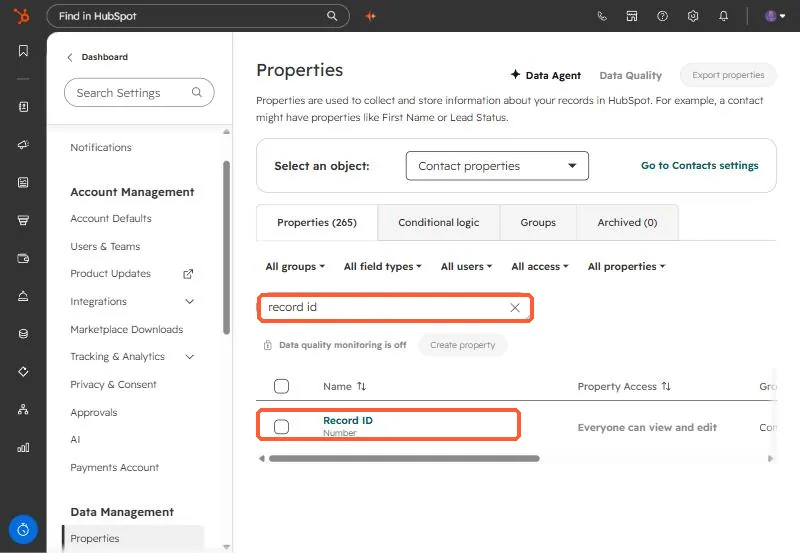
The names in the file hit more than one company in the portal, and the file had no domains. HubSpot's import identifies a company by domain, or by Record ID, and Record ID supersedes everything else in the file. A row with no Record ID creates a new company, so keep unmatched rows out of this import.
3. Export, match, import
- Export the companies you want to enrich, including Record ID, name, and domain.
- In the spreadsheet, match your rows to the export. Keep only rows that match exactly one company, and park the rest for a human.
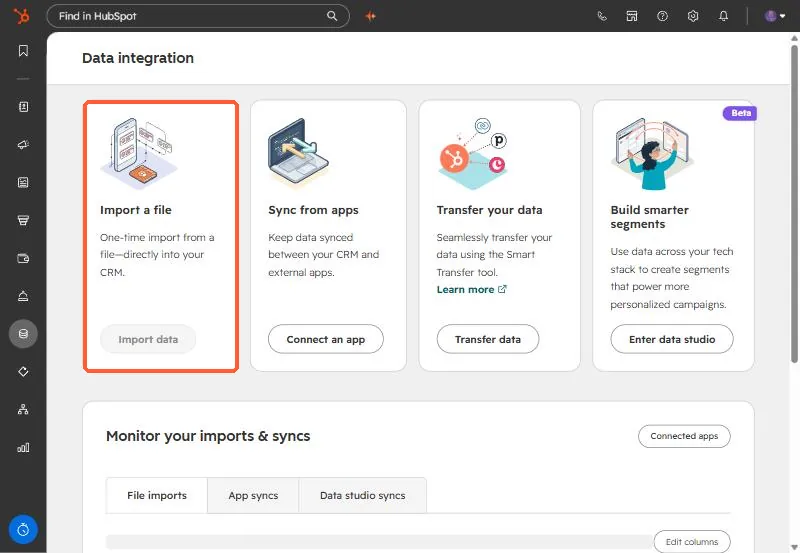
- Start the import from Data integration, choose Import a file, and map the Record ID column to the Record ID property.
After the import, search for companies where the new property is known and compare the count to your matched rows. In the manufacturing project the counts matched at about 590 with zero failed batches.