Short answer
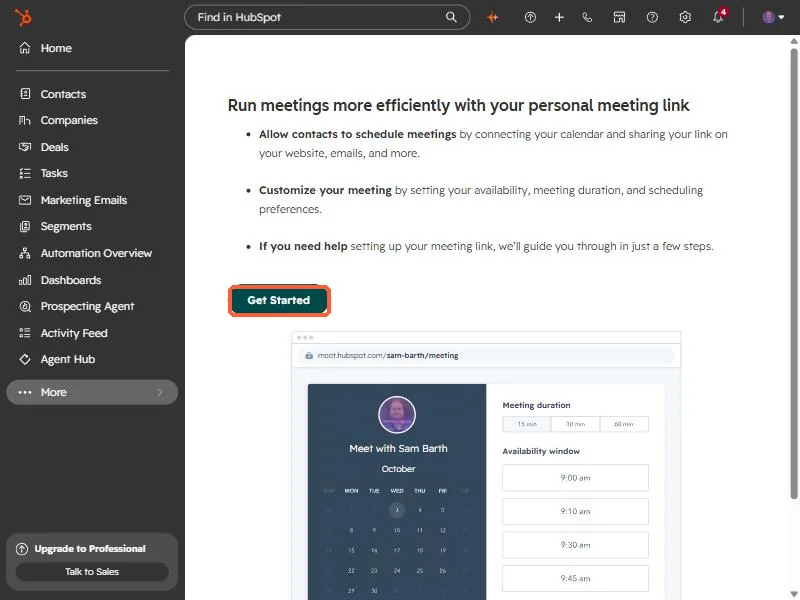
Connect your calendar first, so contacts see current availability. In the meetings tool, create a scheduling page, pick one-on-one, set the event title, location, duration, and time zone, and copy the share link. Anyone who opens it sees your free times based on the connected calendar, and a Gmail or Microsoft 365 calendar syncs booked meetings. The first time you open the meetings tool in a new user account, HubSpot shows a short intro with a Get Started button.
1. Open the meetings tool
Go to Meetings. If you have not set up a link, HubSpot shows an introduction: allow contacts to schedule by connecting your calendar and sharing your link, customize the meeting with availability, duration, and preferences, and a guided setup if you need help. Click Get Started.
2. Connect your calendar before anything else
HubSpot's documentation recommends connecting the calendar before you create a scheduling page. Available times come from the owner's connected calendar, so skipping this gives contacts times you may not have free. A Gmail or Microsoft 365 calendar syncs both ways, so a booking lands on your calendar.
3. Create the scheduling page
- Choose a one-on-one page for yourself.
- Set the event title, the name that shows on the calendar event, such as "Meeting with Sam".
- Set the location: a call-in link or a physical address.
- Set your time zone, meeting duration, and availability.
4. Share it
Click Copy share link. Use the link in your email signature, on your website, and in outreach. This site's Book a call button points to one. You can also embed the scheduling widget directly in a page. See the embed article in the sources.
Open your link in a private window and look at the times it offers. If they look wrong, the problem is your calendar connection or time zone, not the page.