Short answer
Go to Settings, Account Defaults, Currency. The company currency is the default for new deals and what the Amount in company currency property reports in. Add currencies with an exchange rate, or schedule automatic exchange rate updates. HubSpot says open deals use the latest rate, and closed deals use the rate in effect on their close date. Extra currencies need a Starter, Professional, or Enterprise subscription.
1. The Currency tab
Open Account Defaults, Currency. The page says these defaults are used for deals and properties.
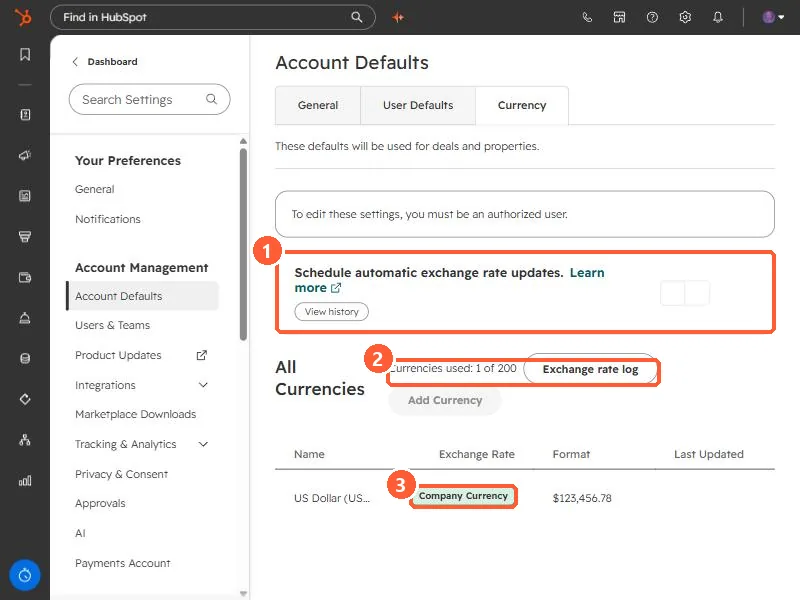
- Schedule automatic exchange rate updates has a toggle and a View history link. Off in my demo.
- Currencies used: 1 of 200, with an Exchange rate log and Add Currency.
- US Dollar carries the Company Currency badge and a format of $123,456.78.
2. How deal amounts convert
Each deal keeps its own currency. HubSpot calculates Amount in company currency as Amount times the exchange rate for the deal's currency. Which rate depends on the deal:
- Open stage: the latest exchange rate, until the deal closes.
- Closed won or lost with a close date: the rate in effect on the close date, or the nearest one.
- Closed with no close date: the rate in effect when the deal was marked closed.
That is one more reason the close date matters. See why the close date changes when a deal is won.
3. Permissions and limits
- You can change the company currency on any account.
- Viewing added currencies needs Super Admin or Edit account defaults. Adding currencies or editing rates needs Super Admin or the billing permission to modify billing and change the name on the contract.
- HubSpot lists the number of currencies allowed per subscription in its product catalog. My demo shows a limit of 200.
- To see past rates for a currency, use Actions, View currency history.