Short answer
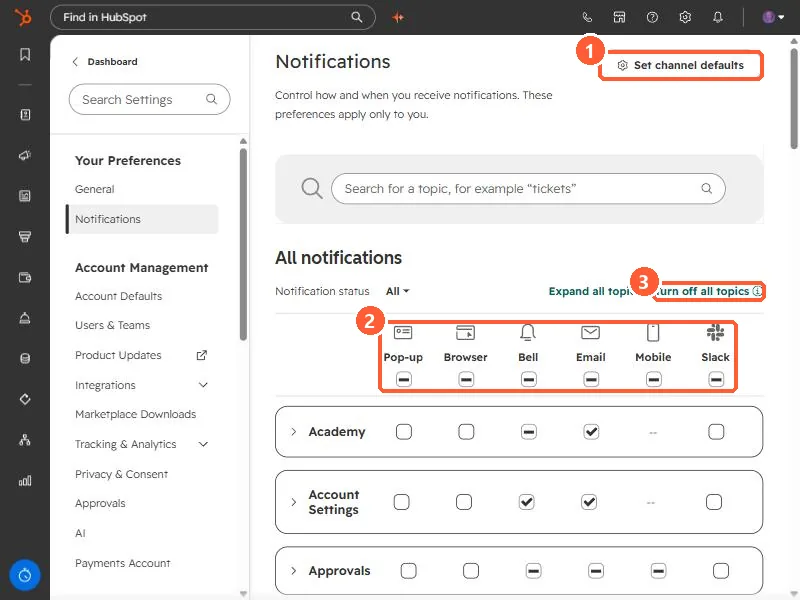
In Settings, Notifications, the page says the preferences apply only to you. Each topic has a checkbox per channel: Pop-up, Browser, Bell, Email, Mobile, and Slack. Set channel defaults turns a whole channel off, and Turn off all topics clears everything. HubSpot caps email notifications at 1,000 per day per address, and unsubscribing from a notification email turns that type off.
1. The notifications page
Open Notifications. The page says it controls how and when you receive notifications, and that these preferences apply only to you.
2. The channels
- Pop-up: on screen while you are active in HubSpot, with a sound you can pick.
- Browser: when HubSpot is open in another tab. Your browser and operating system have to allow it.
- Bell: the red badge on the bell in the navigation bar.
- Email, Mobile (push and in-app), and integrations such as Slack.
Topics such as Academy, Account Settings, and Approvals each have a row. Expand a topic to choose individual notifications.
3. Things HubSpot notes
- Some notifications, such as support and billing emails, cannot be turned off.
- Users will not get more than 1,000 email notifications a day. Sends past that are dropped.
- Unsubscribing from a notification email turns that notification type off. If someone says they stopped getting form alerts, check this page.
- On Professional and Enterprise, Super Admins can create notification profiles in Account Defaults and assign them through user presets, so new users start with sensible settings.
For form alerts specifically, see form submissions marked as spam as well.