Short answer
Go to Settings, Data Management, Properties. Pick an object at the top, then use the tabs (Properties, Conditional logic, Groups, Archived) and the filters for group, field type, creator, and access. My demo portal has 265 contact properties, so the filters do most of the work. Export properties gives you a spreadsheet for an audit.
1. The page layout
Open Properties. Everything on it is scoped to the object you choose in Select an object.
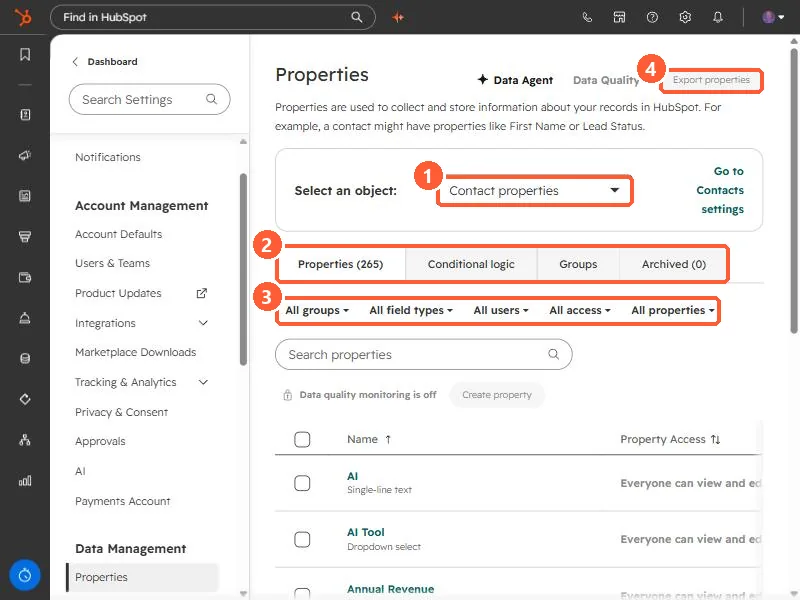
- Select an object. Contact properties here. Switch to companies, deals, tickets, or a custom object.
- Tabs. Properties (with a count, 265 in my demo), Conditional logic, Groups, and Archived.
- Filters. HubSpot says you can filter by property group, field type, brand, access, sensitivity, or the user who created the property. The search box finds a single property by name.
- Export properties. Exports a spreadsheet of properties across your objects. It is greyed out for my read-only login.
2. Three filters worth using
- All users set to a person shows what one admin or integration created. Useful when a connector has added dozens of fields.
- All field types set to single-line text often finds fields that should be dropdowns.
- All groups narrows to one group, but HubSpot notes that groups only appear in property settings, so they are for admins, not users.
3. Before you change anything
Click a property to open it and check its Usage first. See check where a property is used before you change it. For dropdowns, see labels vs internal names.