Short answer
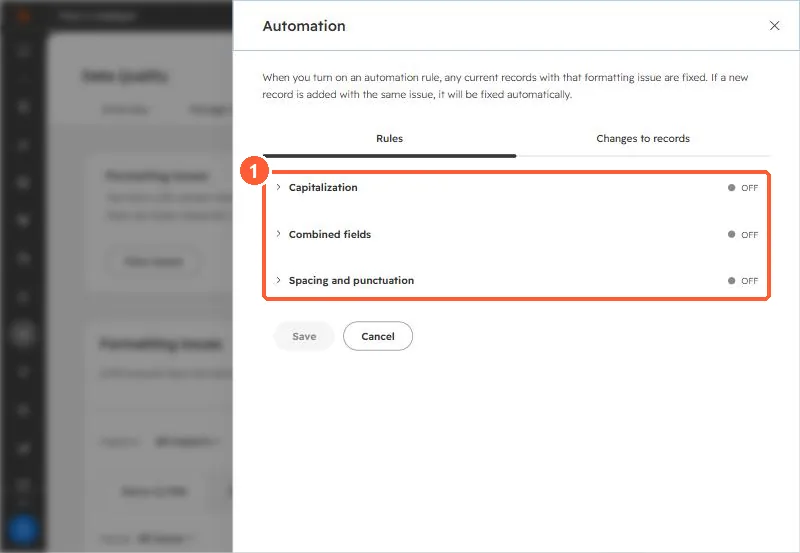
HubSpot automatically deduplicates contacts by email and companies by domain, not by phone. So (555) 123-4567 and +15551234567 sit on two records without any flag. Export the numbers, normalize them to digits with a country code, and group. To keep new values consistent, turn on Validate phone numbers for this property. HubSpot saves validated numbers unformatted (+18884827768) and displays them formatted, but existing values are not reformatted, and the default country code only applies to imports. In my demo, the Data Quality formatting tool covers names, emails, and locations, not phone numbers.
1. Why phone duplicates hide
HubSpot deduplicates contacts on email and companies on domain. Phone numbers are not part of that. A client asked me to find contacts that shared a phone number, where one record had a real email and the other a placeholder from another tool. The same number was stored with dashes on one record, parentheses on another, and a country code on a third.
2. Normalize, then group
- Export Record ID, email, Phone number, and Mobile phone number.
- Reduce each number to digits and add the country code.
- Group by the result. Every group with two or more records is a candidate.
- Review each group by name and email before any merge.
Phone alone should not authorize a merge. Households and shared office lines are real. The detailed case is in duplicates from call tracking.
3. What Data Quality covers
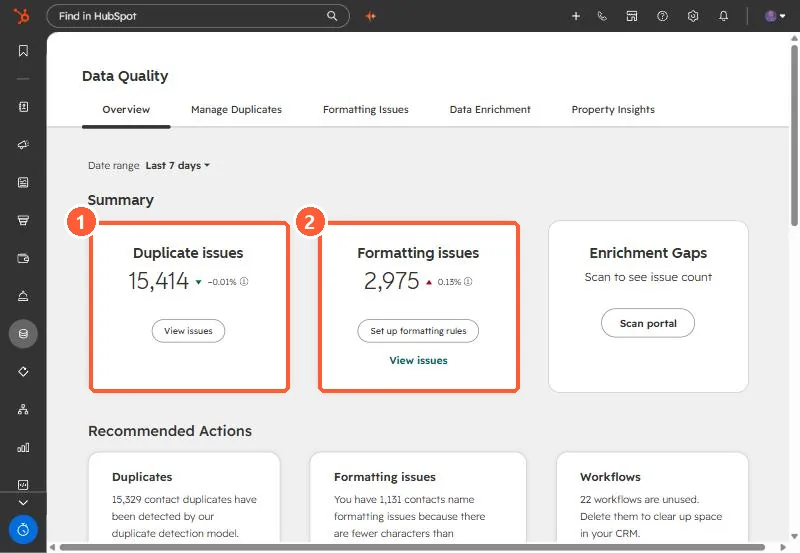
In my demo, the Data Quality overview shows duplicate and formatting issue counts. The formatting issues it lists are name, email, and location issues.
4. Prevent it going forward
On a phone number property's Rules tab, turn on Validate phone numbers for this property and optionally set a default country code. HubSpot's notes: validated numbers are saved without formatting and displayed in the regional format, existing values are not retroactively formatted, and the default country code currently only applies to imports.