Short answer
HubSpot's KB says recurring report emails and recurring dashboard emails can only be sent to HubSpot users. Frequency is daily, weekly or monthly. One-time sends are looser: a dashboard can go to non-users if their domain is connected as an email sending domain, and that needs Professional or Enterprise plus admin-level reporting permissions. To stop a schedule, delete it at least two hours before it is due, or it still sends.
1. Recurring means HubSpot users
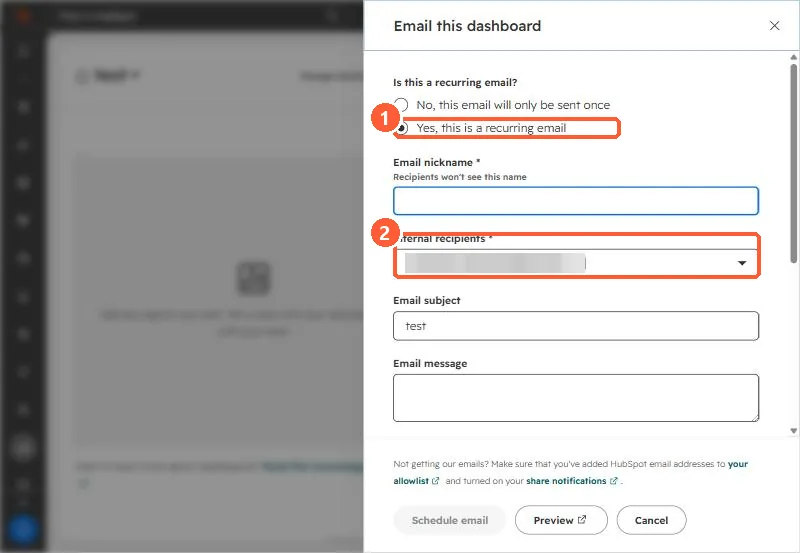
For a home builder client we set up a recurring email so two managers got a report on a regular schedule. Both were HubSpot users, which is the rule: recurring report and dashboard emails only go to HubSpot users. In the dialog the recipient field is labeled Internal recipients.
2. One-time sends are different
- Reports: one-time emails can go to non-users through the Other recipients field, and their addresses must be on a verified domain.
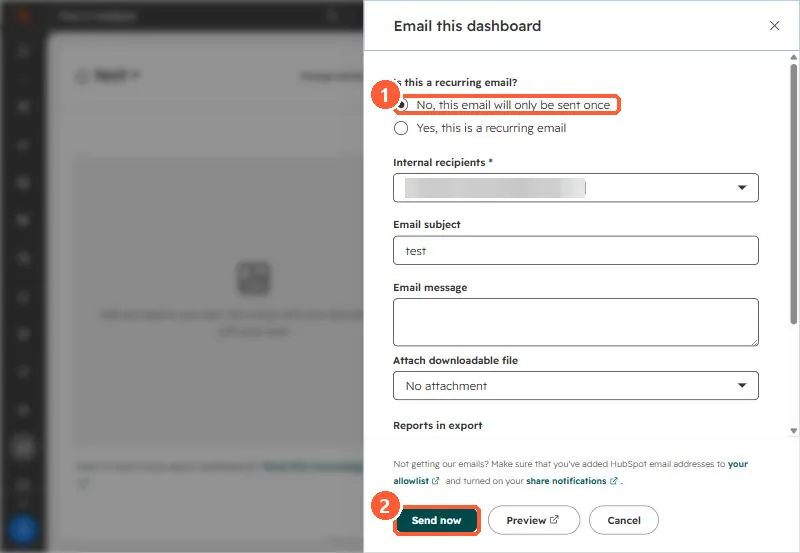
- Dashboards: one-time emails can go to non-users when the recipient's domain is connected as an email sending domain. That needs Professional or Enterprise and admin-level Reporting permissions.
- HubSpot's limit is 100 emails per day to non-HubSpot users. Contacts or users with bounced addresses cannot receive report emails.
3. Changing or stopping a schedule
For a report: Reporting, Reports, hover the report, Actions > Manage recurring shares. For a dashboard: open it, click Share, then Manage recurring emails. You must be a Super Admin or the owner. Delete it at least two hours before its send time. HubSpot captures the report data two hours ahead, and a schedule deleted inside that window still sends.
4. If someone is not getting them
The dialog points to two things: the recipient allowlisting HubSpot's sending addresses, and their share notifications being turned on.