Short answer
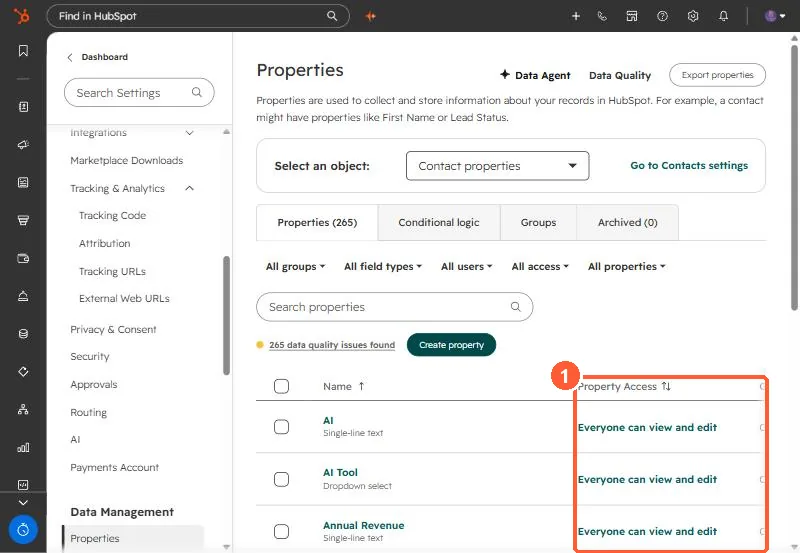
Settings, Properties shows a Property access column. Hover a property and choose More > Manage access to set who can view and who can edit it. Users who cannot view see a restricted icon instead of the value, and saved views filtered on that property, workflows and reports using it may not load for them. Users who cannot edit see a permissions message, but can still set the value when creating a record through the API. HubSpot lists Enterprise for limiting property access.
1. Where
Open Properties. In my demo portal every contact property shows Everyone can view and edit.
2. What restricted users see
- No view access: a restricted icon instead of the value, and saved views filtered on the property will not show records for them.
- No edit access: "You do not have the permissions to edit the value of this field" on hover.
- API record creation can still set a property a user cannot edit.
3. Side effects to test
Workflows, reports and dashboards using a restricted property may not load for users without view access. Restrict one property, then log in as or ask a restricted user to check their views and dashboards. For properties that do not need restricting, conditional property logic may be a lighter way to guide input.