Short answer
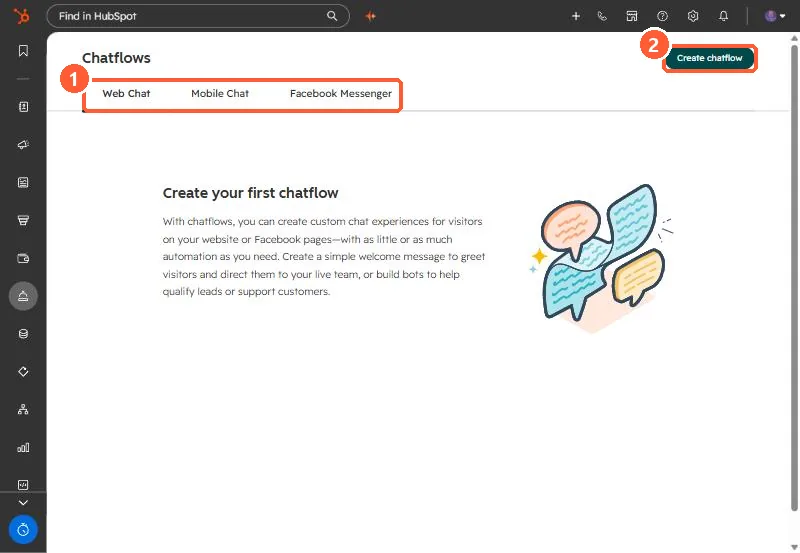
Chatflows live under Service > Chatflows, with tabs for Web Chat, Mobile Chat and Facebook Messenger. A website chatflow needs an inbox or help desk with a connected channel. You set the welcome message, assignment, target URLs and display behavior. If a visitor minimizes the chat, HubSpot keeps it minimized across pages and chatflows for 24 hours through a cookie, which can override your pop-open setting.
1. Create it
Open Chatflows and click Create chatflow.
2. Settings that matter
- Workspace: pick the inbox or help desk. Only ones with a connected channel appear.
- Welcome message and assignment: who answers, and what visitors see first.
- Target: the URLs where the chat appears. Use separate chatflows for different languages.
- Display: whether the welcome message pops open as a prompt on desktop and mobile.
3. The minimize cookie
When a visitor minimizes the chat, the hs-messages-hide-welcome-message cookie keeps it minimized for 24 hours across pages and chatflows. When testing a pop-open setting, use a private window.