Short answer
The error means HubSpot could not match a row's values to the header columns. In the API docs, HubSpot notes that every column needs to be mapped, and an unmapped column can produce Incorrect number of columns when the import starts. In files, a common cause is a comma inside a value that splits it into two columns. Use the import's error file, which lists an error code, object type and reason for each failed row.
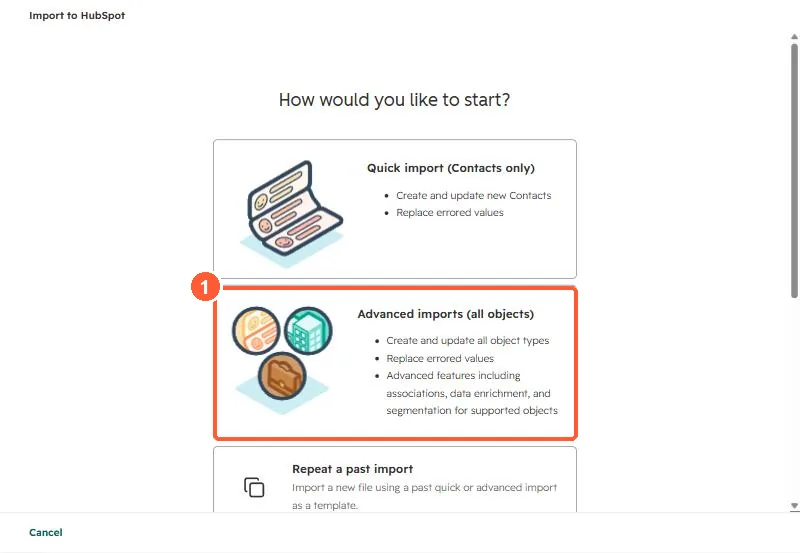
1. Start the import
The import start screen in my demo portal.
2. Fix the file
- Wrap values that contain commas in double quotes, or save as XLSX.
- Remove stray columns with no header.
- During mapping, map each column or choose not to import it.
3. Related
Import limits and duplicates after an import.