Short answer
If the HubSpot tracking code is on the page and the non-HubSpot forms setting is on, HubSpot scans pages for supported forms and collects submissions, creating or updating a contact by email. A collected form shows in the forms list after its first submission. Because HubSpot captures on submit click, client-side validation can produce a partial plus a complete submission. You can convert a collected form into a HubSpot form with Copy to HubSpot.
1. Where it is
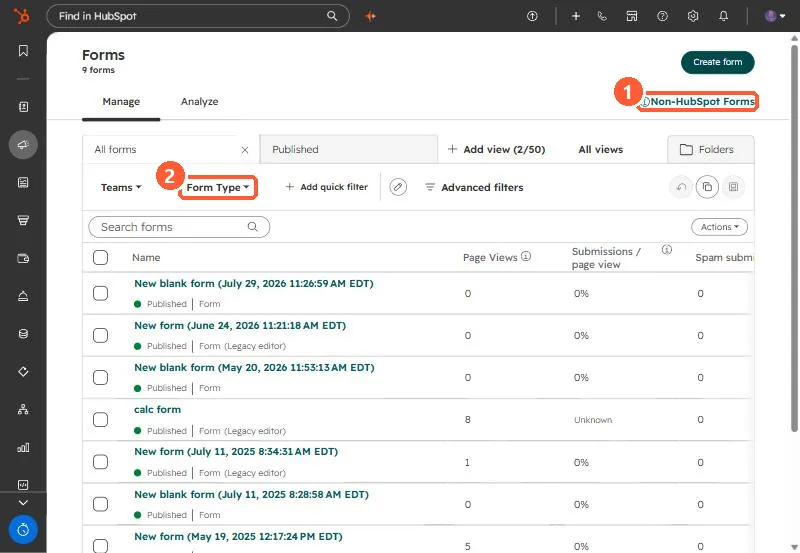
In Forms, the Non-HubSpot Forms link sits at the top right, and the Form Type filter shows collected forms.
2. Requirements and quirks
- The tracking code must load on the page. See checking the tracking code.
- Submissions are captured on submit click, so a failed validation then a retry gives one partial and one complete submission.
- Some form builders are not supported. For those, use HubSpot's form submission API or an integration.
3. Convert to a HubSpot form
Filter Form Type to Non-HubSpot form, hover the form, Actions > Copy to HubSpot. Edit the new form, publish it, and embed it in place of the old one. See embedding a HubSpot form.