Short answer
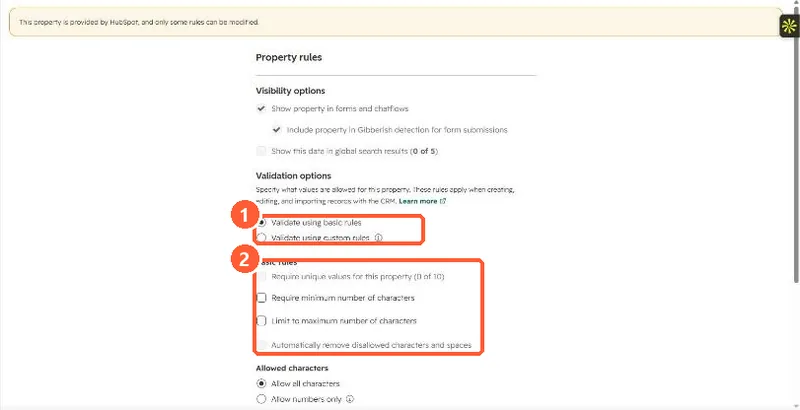
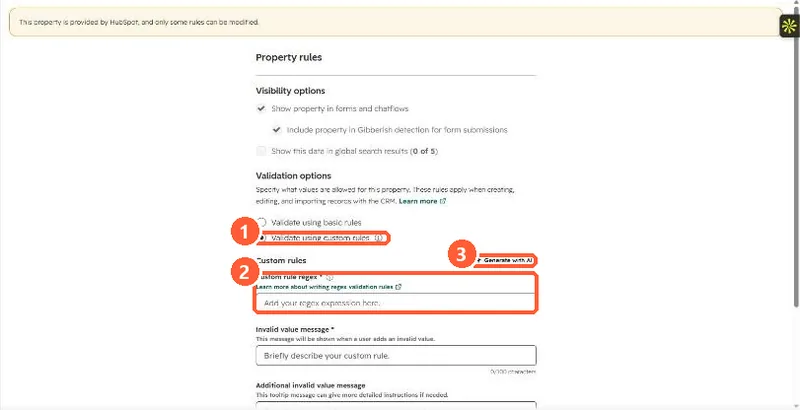
In a text property's Rules, choose Validate using custom rules to enter a regular expression and the message users see when a value does not match. Generate with AI can draft the regex. Basic rules cover unique values, minimum and maximum length, and allowed characters. HubSpot's KB examples include ^\d{5}$ for five-digit zip codes. Custom regex rules need Professional or Enterprise.
1. Basic rules
The Job Title property in my demo portal, Rules section.
2. Custom rules
Selecting custom rules shows the regex field and message fields. I switched it to see the options and discarded the change.
3. Before you add a rule
- Rules apply when creating, editing and importing. Existing values that break the rule show as invalid on the record.
- Test the pattern on real values first. A wrong pattern blocks good data at import.
- For phone numbers, use the built-in rule in phone number validation.