Short answer
On the Tasks page, Actions > Manage queues creates a queue with its own access setting. Add tasks to it by selecting them and choosing Change queue, by picking the queue when creating a task, or from a workflow's Create task action. Filter the index by Queue and start the queue to work through it.
1. The tasks page
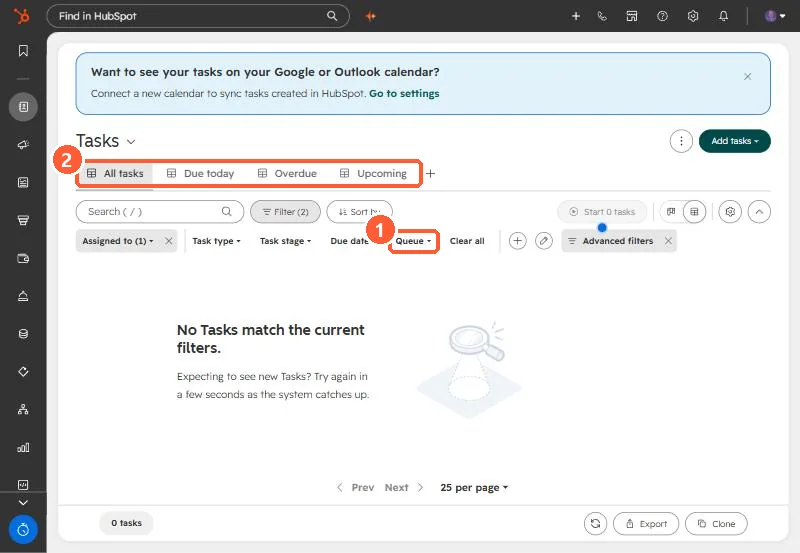
The Tasks index has a Queue filter next to task type and due date, and saved views across the top.
2. Create and fill a queue
- Actions > Manage queues > Create task queue, name it, choose access.
- Select existing tasks and click Change queue.
- Workflows: in the Create task action, use Add to task queue.
3. Work it
Filter to the queue and start it to step through the tasks. The mobile app shows queues too. If the page shows nothing, see tasks page shows nothing.